 Carakin
Create & edit kin profiles
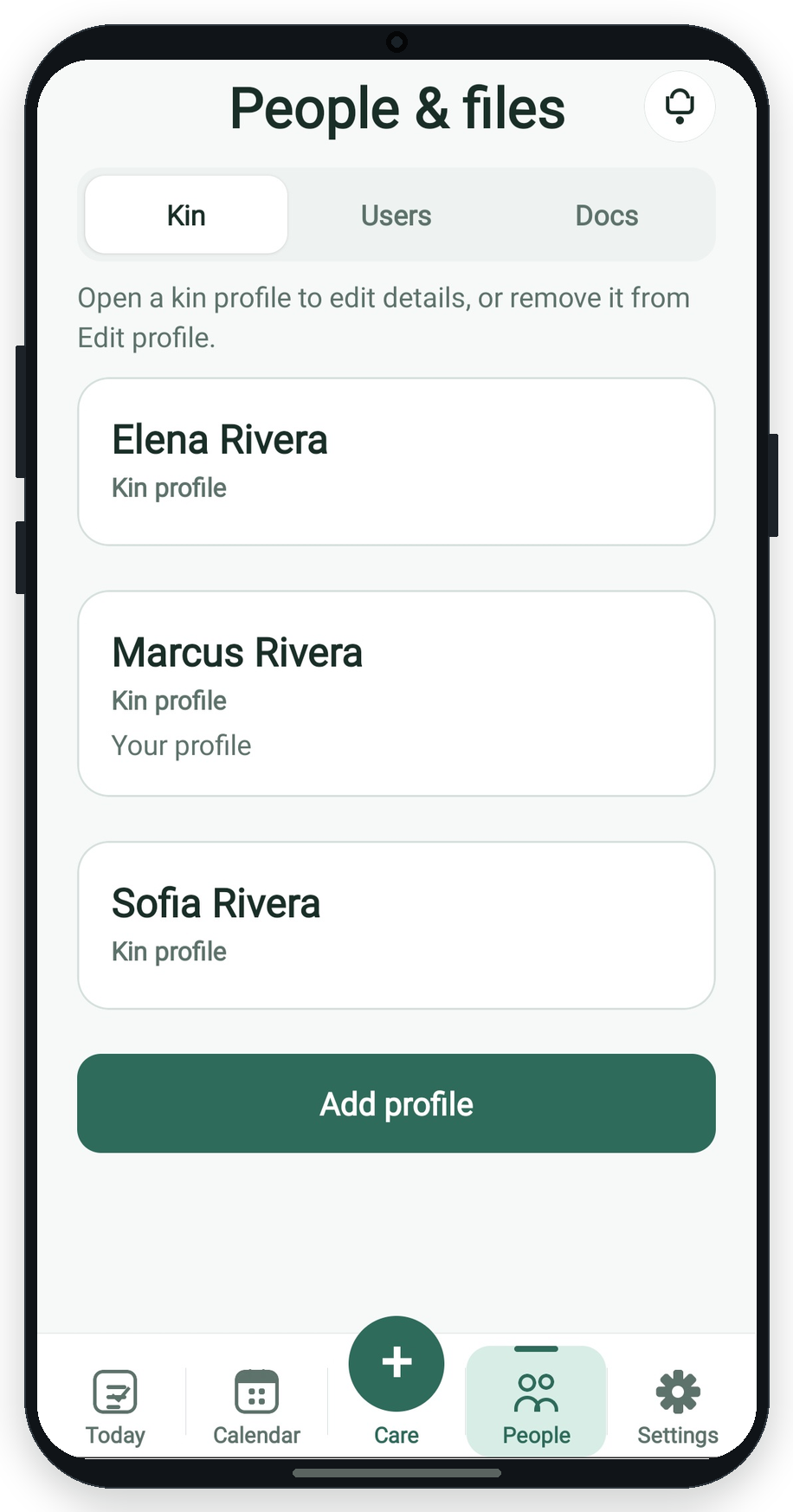
Kin profiles are the people you schedule care for - a child, parent, yourself, or anyone else - with or without their own Carakin login. They live under People → Kin.
Add a kin profile
- Open People, then the Kin tab.
- Tap Add profile.
- Enter their name.
- Optional: check This profile is me if the profile should link to your signed-in account.
- Save. The new profile appears in your kin list.
Open a profile
- From People → Kin, tap a profile card.
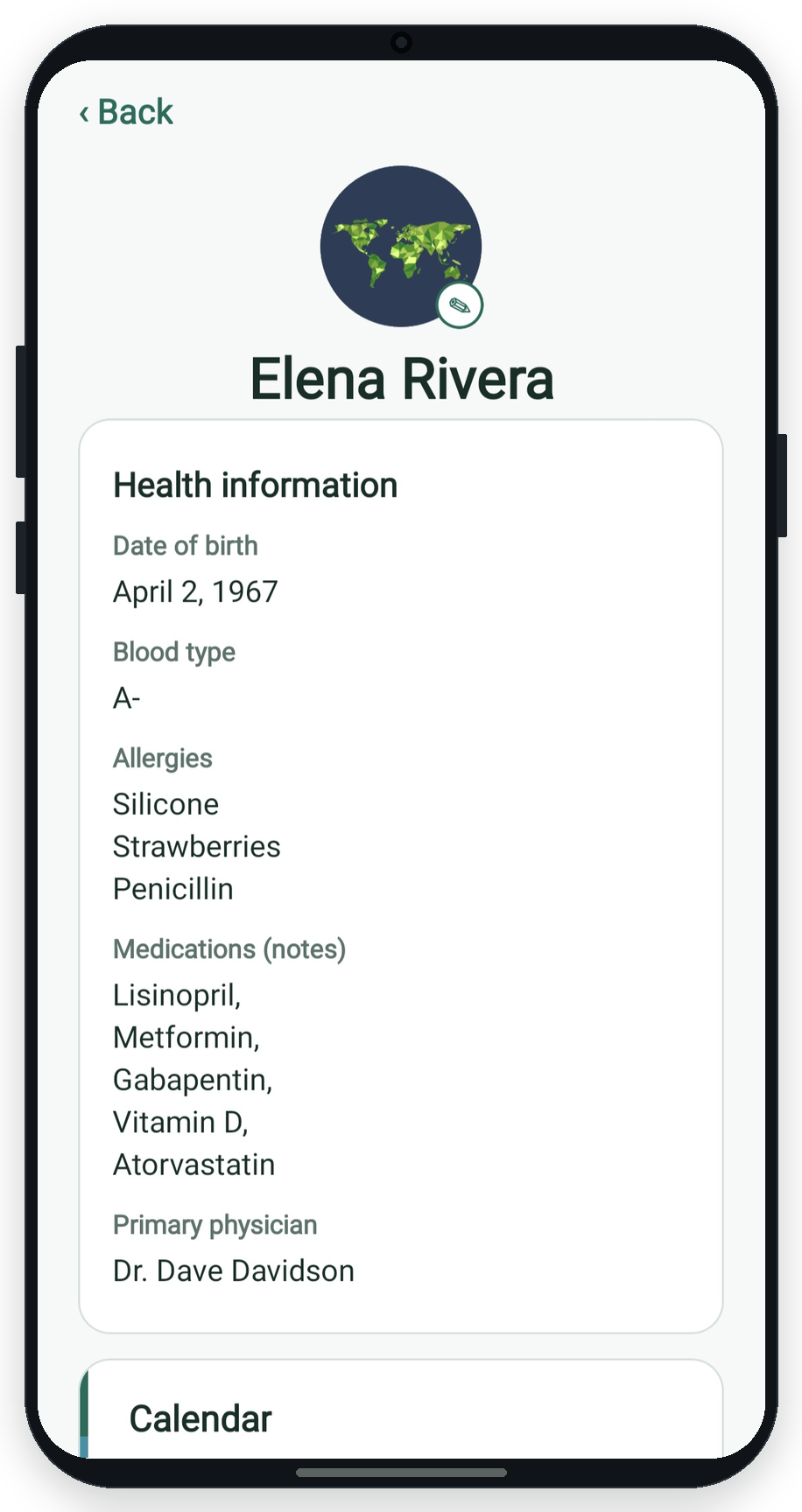
- Use the profile hub for calendar, medications, appointments, tasks, and health information.
- Tap the photo pencil (or open Edit profile) to change photo and personal details.
Edit details & photo
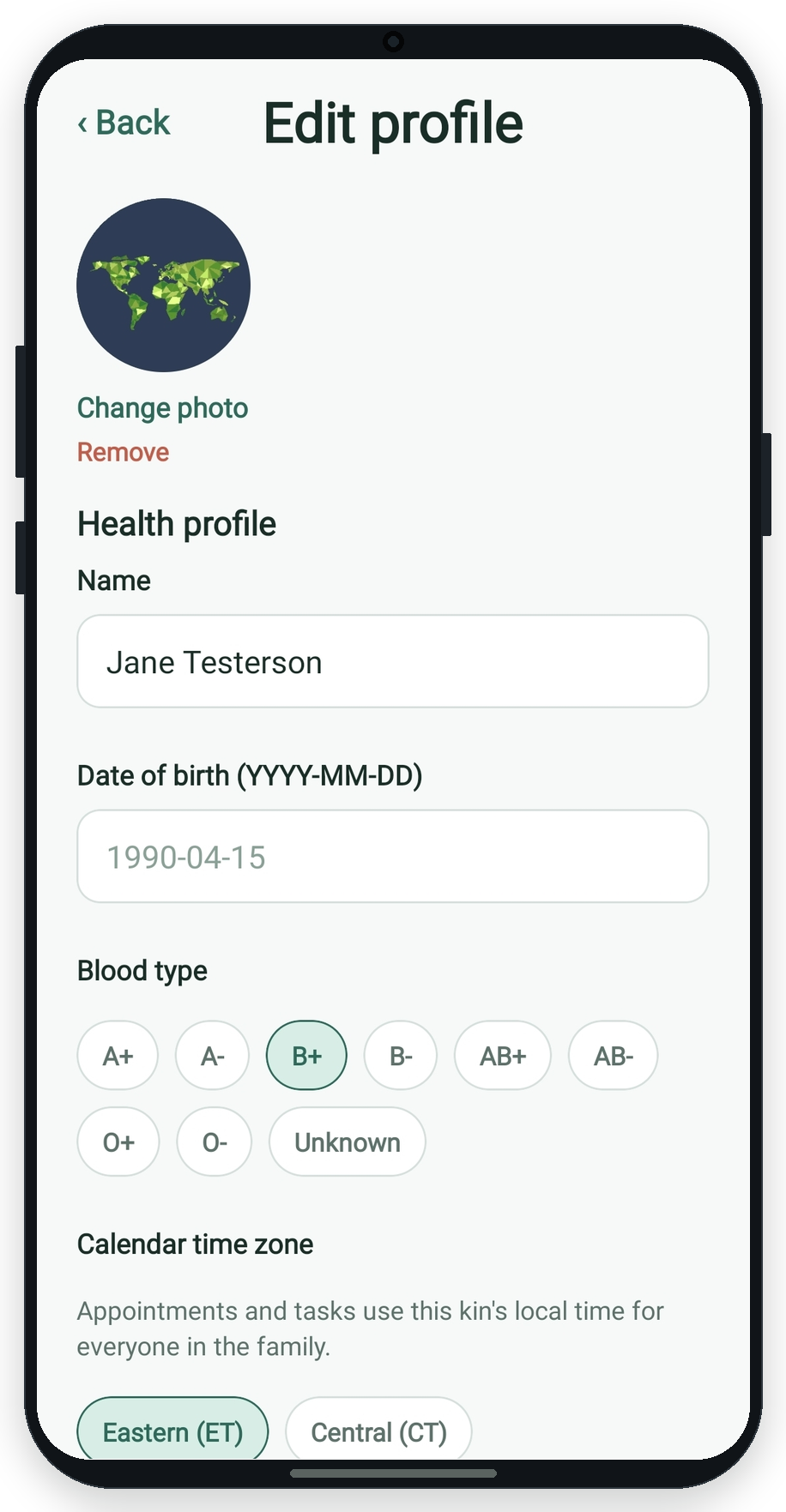
- Open Edit profile from the kin profile.
- Use Change photo / Remove for the profile image.
- Update name, date of birth, blood type, calendar time zone, and other health fields.
- Save when you are done.
Personal fields are encrypted with the family key - the same vault as schedules and files.
Remove a profile
Off-app profiles (not linked to an account) can be removed from the profile page. Linked profiles must be unlinked first - see Link a user to a kin profile.
More guides: All guides | Link profiles | Add a medication